Standard Operating Procedure: GetPlans Server RebootNote
Most GetPlans service issues can be resolved by rebooting the underlying host environment. Execute the resolution steps in the exact order below.
Resolution Procedure
- Verify NAS Availability :Target: RS2414 NAS (172.20.0.22).
- Confirm that the RS2414 NAS (172.20.0.22) is powered on and reachable on the network.
- If the storage device is unresponsive or unreachable, perform a manual physical restart.
- Reboot Virtual Machine :Hypervisor: 172.20.0.2.
- Connect to the hypervisor console at 172.20.0.2.
- Locate the virtual machine LD-EUROPLACER and initiate a system restart.
Start or Restarting the Synology RS2414 NAS (if necessary)
Equipment Location:
- Room: Server room
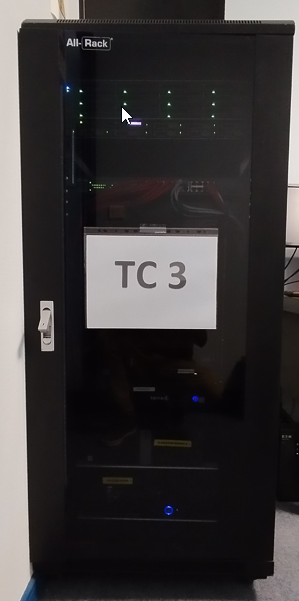
- Rack: TC 3
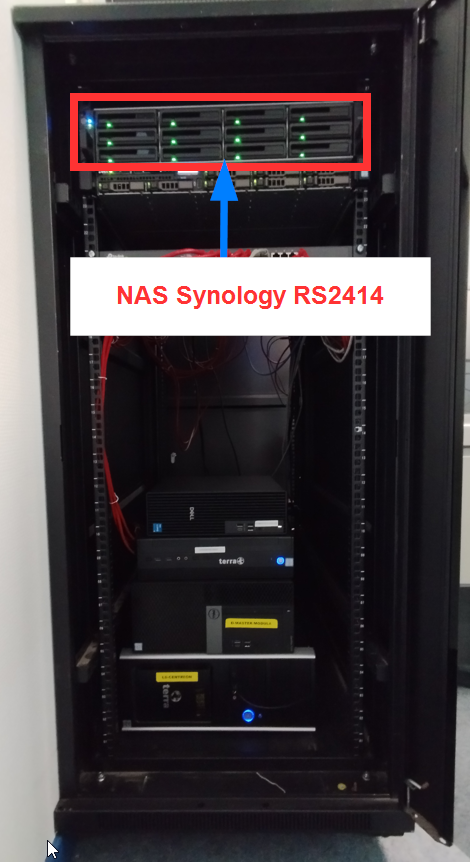
- Position: Top of the rack (Units 24–27), above the Dell PowerEdge R630 server.
- Equipment: Black Synology RackStation 2U chassis with 12 hard drive bays.
 |  |
Software Reboot via DSM (Recommended if possible)
On French lan. Open a web browser and connect to the DSM interface: https://172.20.0.22:5001. In the upper-right corner of the interface, click the User (or Options) icon. Select Restart. Confirm the restart. The NAS will gracefully stop all services and reboot (approximately 3 to 5 minutes).
Physical Reboot (Front Power Button)
Note: Use this method only if the DSM web interface is unavailable.
Graceful Shutdown
- Open the TC 3 rack door.
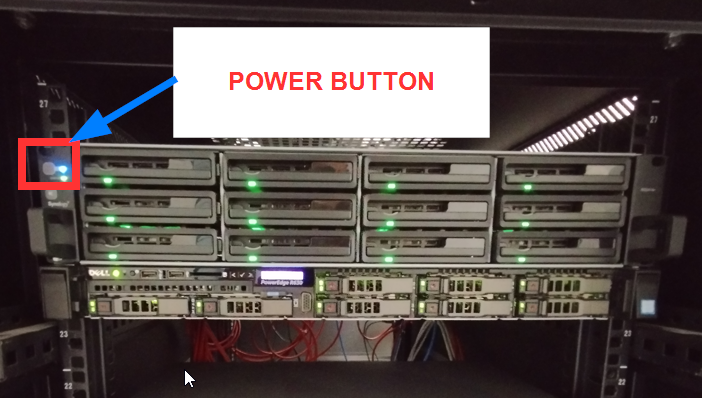
- Locate the power button on the left front panel (left ear) of the NAS.
- Press the power button once (do not hold it down). The blue power LED will start flashing and the NAS will emit a beep, indicating that a graceful shutdown is in progress.
- Wait until the fans have completely stopped and all LEDs are off (approximately 1 to 2 minutes).
- Power On Press the power button once. The NAS will emit a beep and begin its startup sequence
Forced Restart (System Completely Unresponsive)
If the system is completely frozen, press and hold the power button for 10 seconds until the NAS powers off. Wait 15 seconds, then press the power button once to turn the NAS back on.
Procedure – CIFS mount issue (NAS unavailable after power outage)
? Context
After a power outage, the RS2414 NAS (@172.20.0.22) may fail to restart automatically, or may start after the getplans server.
In this situation, the CIFS mount to the folder containing production drawings fails at boot.
In this situation, the CIFS mount to the folder containing production drawings fails at boot.
⚠️ Impact
The NAS network share is not available, preventing automatic mounting of the drawings directory.
?️ Resolution
- Check the NAS
- Ensure the RS2414 NAS (172.20.0.22) is powered on and reachable on the network.
- Restart it manually if needed.
- Restart the virtual machine
- Connect to the hypervisor: 172.20.0.2
- Restart the virtual machine: LD-EUROPLACER
✅ Expected result
After completing these steps, the CIFS mount reconnects automatically and the drawings become accessible again.
Was this article helpful?
That’s Great!
Thank you for your feedback
Sorry! We couldn't be helpful
Thank you for your feedback
Feedback sent
We appreciate your effort and will try to fix the article