Fortigate Enterprise Application in Azure
- Log in to the Azure portal with elevated admin privileges (Home - Microsoft Azure)
- Search for Enterprise Applications and then in the application, search for “Fortigate SSL VPN” and pick which region you need (UK or FR).
- For the Application, there is a security group applied in Users and Groups. This should be [Region] – SSO VPN MFA.
- In the Single Sign-On section is the connection configuration. You need the Single Sign-On Section of Fortigate open as well to check the URLs.
- Basic SAML configuration URLs should be copied from Fortigate SSO connection settings, in the section called Service Provider Configuration.
*Reply URL can also be called Assertion Customer Service URL
The Sign ON URL should not contain /saml – just remove this section of the URL. (MS advice says otherwise. Ignore it.) - Attributes and Claims should contain the following details:
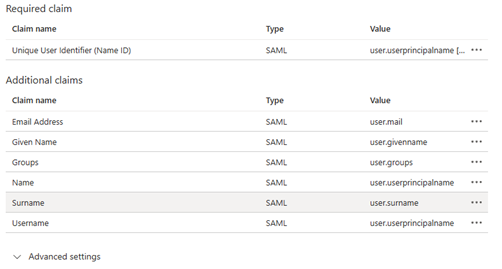
- In the SAML Certificates section, the Signing Option should be set to Sign SAML Response and Assertion (only visible after clicking edit).
The Base 64 certificate is generated here to upload to Fortigate (ref Fortigate section, instruction 4) - In the Set Up section, the URLs to insert into Fortigate are generated.
*Entity ID can also be called Microsoft Entra Identifier - Ensure both the Azure setup and Fortigate setup are fully complete before using the test function within the application setup, it should open a browser with an SSO login.
- To view logs and errors, go to the Sign In Logs. You can view fail/success, location, device ID, authentication used, which conditional access policies are triggered etc.
SSO Setup on Fortigate
- Log in to the Fortigate web interface.
- Navigate to User and Authentication, then Single Sign On. The existing connection should be SSO VPN_MFA.
- In the connection, under the Service Provider Configuration section, the Address should be set to the VPN hostname with the port (for UK: rauk.europlacer.net:10443, for FR: rafr.europlacer.net:4443)
The links below that are copied to use in the Azure Enterprise Application setup (see Azure section, instruction 5). - In the Identity Provider Configuration, the Type should be Custom and the URL fields populated with the links from the Azure Enterprise Application. Obtain the Certificate (Base 64) from Azure as well and upload it. Make sure you select it in the drop down after uploading.
- Under Additional SAML Attributes, ensure that the fields contain "Username" and "Groups" (make sure this reflects the Claim Name of the Claims in Azure). You do not need to add all the Claims that exist in Azure, just those two.
- Click OK at the bottom of the page.
- In User and Authentication, go to User Groups and ensure the group SSO VPN_MFA Users is set up with these details:
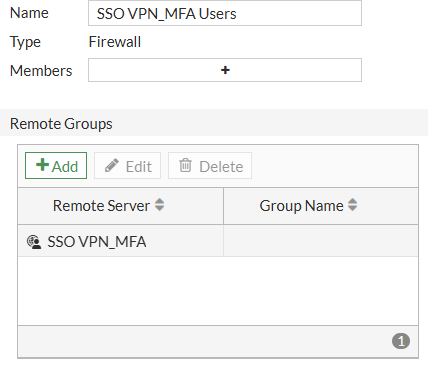
- Go To VPN, then SSL-VPN Settings. There should exist a self-renewing certificate (RAUK-VPN or RAFR-VPN). If it does not exist or is expired, set up a new one.
- To set up a new self-renewing Certificate, click Create in the drop down menu.
Name the Certificate, input the hostname for the VPN as the domain (for UK: rauk.europlacer.net:10443, for FR: rafr.europlacer.net:4443), and enter a central email for alerts. Click Create.
It may ask you to select an ACME protocol, which you should set as the main WAN. Make sure once the certificate is created, you select it in the dropdown. - Scroll down in the SSL-VPN Settings and ensure the SSO VPN_MFA Users group is applied under Authentication/Portal Mapping.
- You can manage and delete Certificates from System > Certificates (this may vary).
- Go to Policy & Objects, go to Firewall Policy. Expand any sections that contain the zone SSL-VPN Tunnel Interface and ensure the user group SSO VPN_MFA Users is included as a source.
DNS
- Log onto both FR and UK domain controllers. Navigate to the DNS Manager.
- Go to Forward Lookup Zones, the Europlacer.net and ensure the Host (A) record exists for the connection. (for UK: rauk, for FR: rafr) the record should have the public IP of the VPN location in the Data section.
*BOTH records should exist in BOTH UK and FR DCs. - The same records needs to exist with the domain registrar (currently Network Solutions for Europlacer.net).
Test and Verify the Connection
- Open Forticlient on your device and ensure the connection details are correct.
- Attempt to connect. It should open a browser window to connect to Azure and prompt to login or use the existing login to authenticate.
Was this article helpful?
That’s Great!
Thank you for your feedback
Sorry! We couldn't be helpful
Thank you for your feedback
Feedback sent
We appreciate your effort and will try to fix the article