Deploy Forticlient and Connections via Intune
- Open Intune in a browser window with elevated Admin privileges.
- Go to Users and find the user's profile. In Groups, add the security group(s) UK - SSO VPN MFA and/or FR - SSO VPN MFA.
- Go to Groups and find Forti VPN Deploy.
- Go to Members and Add Members.
- DO NOT SELECT THE USERS PROFILE - THIS DEPLOYMENT MUST BE BY DEVICE ONLY.
- Find the users device (ensure it is the correct one as there are many older records) and Select it.
This will take some time to show through, as the device has to check in with Intune. You can check the status and troubleshoot by going to Intune > Apps and searching for either the Forticlient package, or EP SSO VPN Connections and checking the device install status.
Manual Deployment
- Ensure the user is in the security group(s) UK - SSO VPN MFA and/or FR - SSO VPN MFA.
- On the user's device, set up VPN connections in Forticlient using these details:
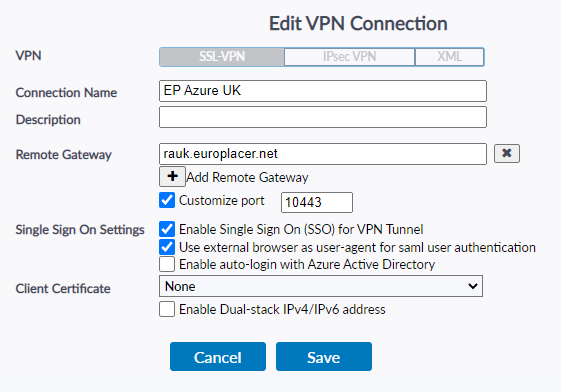
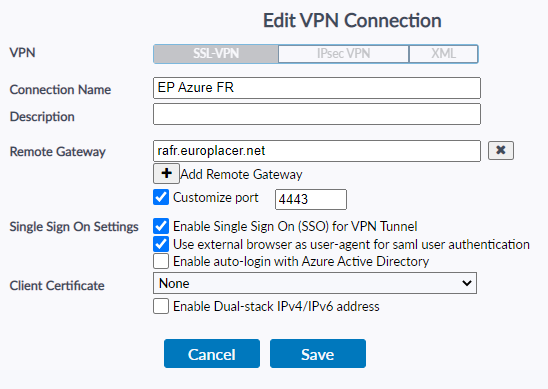
If the client doesn't open a browser to trigger Azure authentication, there is something wrong with Forticlient. Check the version is up to date.
Remove the connection, fully shut down Forticlient, reboot, then open Forticlient and set the connection up again.
Was this article helpful?
That’s Great!
Thank you for your feedback
Sorry! We couldn't be helpful
Thank you for your feedback
Feedback sent
We appreciate your effort and will try to fix the article